Year-end in SAP Business One®: set up 2027 before the first January posting
Last checked: 11 October 2026, on SAP Business One 10.0 FP 2608 (SQL Server): the Posting Periods screens in the desktop client. The other steps and the Web Client paths follow SAP’s year-end closing guide and Web Client user guide. Our screenshots show 2031, because our test company already has posting periods up to 2030.
Three set-up items often stop SAP Business One postings at the turn of the year: the new year’s posting period, its due date range, and, if you restart numbers each year, the numbering series. Set them up in December, a few weeks ahead, before anyone posts in the new year.
Before you start
- Back up the company database.
- Look at the Posting Periods list first (Administration > System Initialization > Posting Periods). Check whether 2027 already exists, so you don’t create the year after it by mistake.
- Check everything before the first posting. Once a period has postings it can’t be deleted, and its set-up (code, sub-periods, indicator, posting dates) can’t be changed. The Due Date To is the exception: you can still extend it later.
- Check this year’s Due Date To too. If your 2026 periods have a Due Date To of 31 December 2026, invoices posted now with a due date in January are refused: extend it.
- You need the right user: a superuser, or a Professional user with full authorization for Posting Period and Change Period Status. Other license types come with a fixed set of authorizations.
1. Check how document numbers continue
If your document numbers restart each year, your company uses a period indicator per year. Create the new indicator (for example “2027”) before you create the period:
- Desktop client: Administration > Setup > Financials > Period Indicators.
- Web Client: Administration > Configuration > Accounting > Period Indicators (up to 10 characters).
An indicator that is already in use can’t be deleted or changed, so check the spelling.
If all your numbering series use the Default indicator and numbers simply continue, you don’t need a new indicator. To check, open last year’s period from the Posting Periods list and look at its Period Indicator. If it says Default, your company does not use a period indicator per year, so you can go on to step 2.
2. Advanced G/L account determination
If your company uses Advanced G/L account determination rules, they must exist before you create the new periods, or they won’t carry into them.
3. Check the two period settings first
In the desktop Posting Periods window, check these settings before you choose New Period. Tick the ones you want, then save the window with the button at its bottom left (it reads OK in our screenshot because nothing has been changed yet):
- Create New Periods with ‘Due Date To’ in Next Financial Year, with Set to end of a month (for example March). The periods you create afterwards get their Due Date To at the end of that month in the next year, so invoices dated December 2027 with due dates in early 2028 post without the “Date deviates from permissible range” (10000047) error.
- Automatically Update Period Status to ‘Closing Period’ for Existing Periods, with Days After New Period Starts. This one acts on existing periods: once a period has ended, SAP Business One sets it to Closing Period after that number of days. Use it only if your finance team wants that.
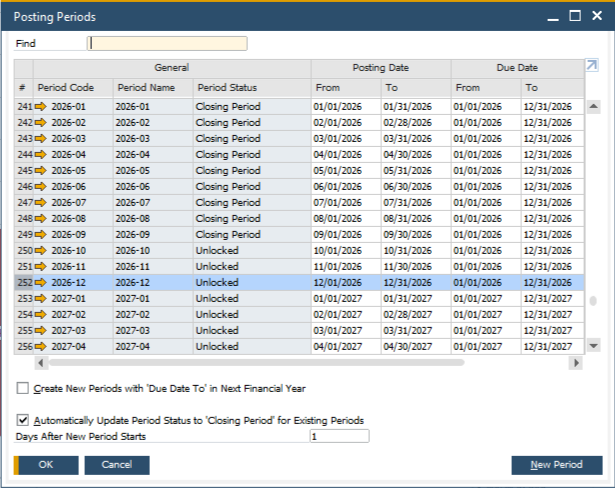
In the Web Client the same settings are under Administration > Configuration > General > Posting Periods > Posting Periods Settings, labelled “Create New Periods with ‘Due Date To’ in Next Fiscal Year” and “Update Status of Existing Periods to ‘Closing Period’”.
4. Create the 2027 period
Desktop client: in the Posting Periods window, choose New Period. Web Client: Administration > Configuration > General > Posting Periods > Posting Periods Definition, then Create.
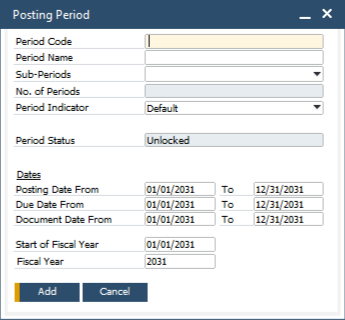
- Period Code, Period Name and Sub-Periods start empty. Name the period the way your earlier years are named.
- Choose the same Sub-Periods as earlier years (usually Months).
- Choose the Period Indicator from step 1 (or leave Default).
- Check the posting date range. SAP proposes the year after your last period. Posting date ranges of different periods can’t overlap. Check Start of Fiscal Year and Fiscal Year (2027).
- If you didn’t switch on the due date setting in step 3, set the Due Date To a few months into 2028 now. The due date range is allowed to be longer than the posting range.
- Add the period.
Then read the list back: twelve months for 2027 (if you use months), each with a Due Date To in 2028.
5. Numbering series for 2027 (only if you use period indicators)
With period indicators, SAP Business One offers only the numbering series whose indicator matches the posting period. So each document type you use needs a series for 2027:
- Open the Document Numbering – Setup window in the desktop client. For each document type (A/R invoice, sales order, delivery and so on), add a series with the 2027 indicator and a number range that doesn’t overlap another series.
- Give each 2027 series the same Group as last year’s series, so the same users can use it. Users need the Numbering Series authorization and Series: Group No. for that group.
- Don’t lock last year’s series until the last 2026 posting is done. Documents dated in 2026 still use them. If the only series for a document type is locked, users see “To generate this document, first define the numbering series in the Administration module” as soon as they open that document.
6. Other things to clear before the year ends
- Item costs: save item costs in a year-end price list before the first posting in the new year. SAP Business One can’t show moving-average or FIFO cost back-dated to a cut-off date.
- Drafts: check open drafts (sales, purchasing, payments, journal vouchers). Post an old draft in an open period; don’t reopen a closed one.
- Payments and bank: check saved payment runs, draft bank statements and clearing accounts.
- Inactive business partners: tick Display Inactive Business Partners in Reports (General Settings, BP tab), or they drop out of the aging reports.
- Closing accounts: the period-end closing account and the retained earnings account must stay the same in the new period, and should be two different accounts.
After 31 December: closing 2026
When your year-end entries are in, set 2026 to Closing Period and do your checks and reconciliations, including Check Document Numbering (Administration > Utilities), which finds gaps and duplicates. Then run Period-End Closing (Administration > Utilities) and Lock the 2026 periods.
If your fiscal year starts in another month, do the same steps before the first posting of your new fiscal year.
If you already see an error
- “Date deviates from permissible range” (10000047): the due date range.
- “Posting date deviates from the defined range” (10000156) or “Posting period locked”: the missing or locked period.
If you’d rather not set up the new year alone, send us what you see and we’ll walk through it with you.
Screenshots from our SAP Business One test company (demo data): © 2026 SAP SE or an SAP affiliate company. All rights reserved.
SAP and SAP Business One are the trademarks or registered trademarks of SAP SE or its affiliates in Germany and in other countries. ZConsulto’s services are not produced or endorsed by SAP or by any other vendor named on this page.