“Date deviates from permissible range” (10000047) in SAP® Business One: why it happens and how to fix it
Last checked: 10 October 2026, on SAP Business One 10.0 FP 2608 (SQL Server) in the desktop client, and against SAP’s Web Client user guide.
It usually starts in December. A user adds an A/R invoice dated in December, and SAP Business One refuses it:
Date deviates from permissible range
Integrations and import tools usually show it with the message number 10000047. Nothing looks wrong with the posting date. The problem is almost always the due date (on sales and purchase orders it is called the Delivery Date). Less often it is the document date, which has its own range.
Why it happens
Every posting period (usually one per fiscal year, split into monthly sub-periods) has three date ranges, not one:
| Range | What it limits |
|---|---|
| Posting Date From / To | The posting date of documents and journal entries |
| Due Date From / To | The due date |
| Document Date From / To | The document date |
The due date is often worked out from the customer’s payment terms. An invoice dated 15 December with 30-day terms is due around 14 January. If the year’s Due Date To is 31 December, that due date is outside the range, and the invoice is refused.
We reproduced exactly this on a test company: the invoice dated 15 December with 30-day terms was refused with 10000047; the same invoice with a due date of 31 December posted.
Cancelling an invoice like that can fail with the same message, because the cancellation uses the original due date.
This is not the same error as “Posting date deviates from the defined range” (10000156), where the posting date itself is outside every period, or “Posting period locked”. Both have their own guide: 10000156 and locked periods.
The 2-minute check
You need a user who can open the posting periods (usually your SAP admin).
Desktop client
- Go to Administration > System Initialization > Posting Periods.
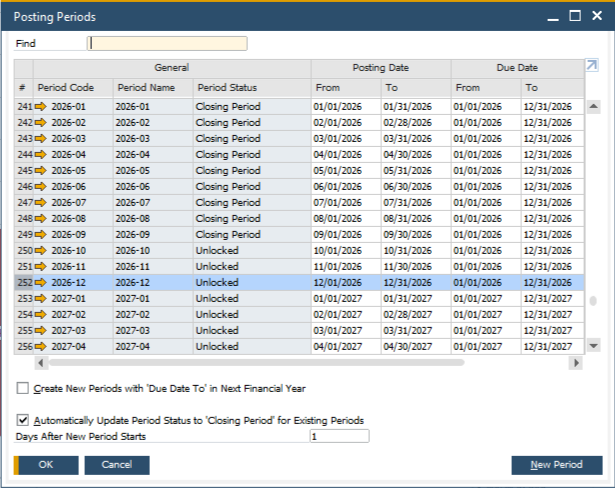
- Find the period that contains the refused document’s posting date. The list already shows its Due Date From and To; you can also open the period with the link arrow next to its Period Code.
Web Client
- Go to Main Menu > Administration > Configuration > General > Posting Periods > Posting Periods Definition.
- Open the current period.
- Look at Due / Document Date From and To.
Compare the Due Date To with the due date on the refused document. If the document’s due date is later, you have found the cause. If it isn’t, compare the Document Date To with the document date the same way.
How to fix it
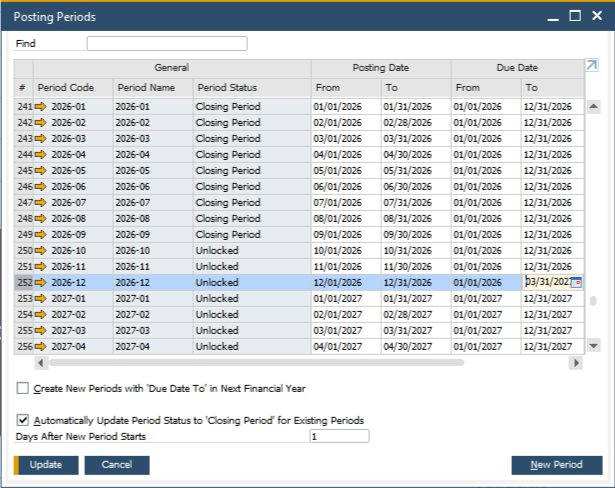
For good: move the Due Date To later. In that period, change the Due Date To to a later date, for example the end of March next year, and update. SAP’s documentation describes the same fix for a document whose date is past the Due Date To. The due-date range is allowed to be longer than the posting-date range. Then add the invoice again.
Who can do it: a user with full authorization for Posting Period and Change Period Status (Administration > System Initialization > Authorizations > General Authorizations). Talk to whoever owns the books first; it changes what due dates the whole company can enter.
For one urgent invoice: use a due date inside the range. Enter a due date of 31 December (or another date inside the range) and add it. Only do this if your finance team agrees: it changes when the invoice is due on paper, and your customer statements will show that date.
To cancel a document that hits 10000047: Fix the Due Date To first, then cancel. If you can’t change the period, a credit memo with a due date inside the range reverses the invoice instead (that is what worked on our test company).
For integrations and imports: If the error comes from a web shop, EDI or import tool, the fix is the same: it is a period setting in SAP Business One, not a problem in the tool. On our tests the Due Date To could not be changed through the Service Layer; change it in the client.
Stop it next year
When you create next year’s posting period, set its Due Date To a few months into the following year at the same time.
You can make that automatic. In the desktop client, the Posting Periods window has the check box Create New Periods with ‘Due Date To’ in Next Financial Year, with Set to end of a month. In the Web Client: Main Menu > Administration > Configuration > General > Posting Periods > Posting Periods Settings, tick Create New Periods with “Due Date To” in Next Fiscal Year, and choose the month in Set “Due Date To” to End of Month. New periods then get a Due Date To at the end of that month of the next year.
Quick answers
Why only some invoices?
Only documents whose due date lands after the Due Date To. Customers with longer payment terms hit it first.
Can a superuser just post it?
The date ranges apply to the document, not to the user, so changing the user is not the fix.
We fixed a locked December and now get this error.
That’s common. Unlocking December lets the posting date through, and the January due date then hits the Due Date To. Fix the range as above.
If you’d rather not change period settings alone, send us the exact message and we’ll walk through it with you.
Screenshots from our SAP Business One test company (demo data): © 2026 SAP SE or an SAP affiliate company. All rights reserved.
SAP and SAP Business One are the trademarks or registered trademarks of SAP SE or its affiliates in Germany and in other countries. ZConsulto’s services are not produced or endorsed by SAP or by any other vendor named on this page.