“Posting date deviates from the defined range” (10000156) in SAP® Business One: create or unlock the right posting period
Last checked: 10 October 2026, on SAP Business One 10.0 FP 2608 (SQL Server) in the desktop client, and against SAP’s Web Client user guide.
Two messages stop users from adding documents at the turn of the year. They look alike but have different fixes:
Posting Date deviates from the defined range. To complete the operation, define the posting period to match the entered Posting Date.
Posting period locked; specify an alternative date
In the desktop client it ends with [Message 131-107].
The first (message number 10000156) means no posting period covers the posting date. The second means the period exists but is locked. A third one, “Date deviates from permissible range” (10000047), is about the due date and has its own guide.
Message 1: the posting date is outside every period
Why it happens. Every posting date must fall inside a posting period. If the latest period ends on 31 December and a user posts on 2 January, there is nowhere for the document to go. We reproduced it on a test company by posting a document dated after the last defined period.
The usual causes:
- The new fiscal year was never created. Most common in the first days of January.
- A typing error in the date, for example 2062 instead of 2026.
The 1-minute check.
- Desktop client: Administration > System Initialization > Posting Periods. Look at the last period in the list and its posting date range.
- Web Client: Main Menu > Administration > Configuration > General > Posting Periods > Posting Periods Definition.
If the document’s posting date is after the last period ends, the period is missing.
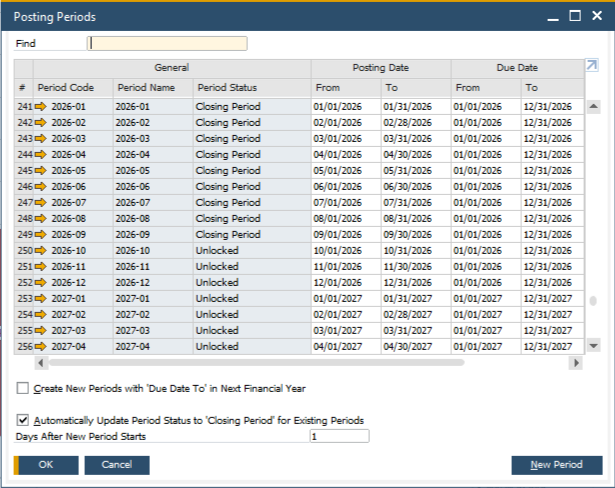
The fix: create the new period.
- Desktop client: in the Posting Periods window, choose New Period.
- Web Client: in the Posting Periods Definition list, choose Create.
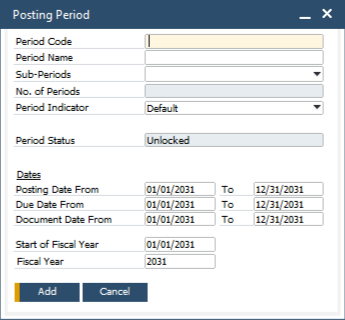
Then:
- Fill in Period Code and Period Name the way your earlier years are named, and choose the same Sub-Periods (usually Months).
- Check the posting date range. By default it starts the day after the latest period ends and runs for one year. Ranges of different periods must not overlap.
- Set the due date range longer than the posting range, for example to the end of March of the following year. This prevents the 10000047 error on December invoices with January due dates.
- If your company uses period indicators for numbering series, choose the right one, and make sure the new year has an unlocked numbering series with that indicator. Otherwise the next error can be “To generate this document, first define the numbering series”.
- Add the period, then post the document again.
Creating periods needs full authorization for Posting Period and Change Period Status. Ask the person who owns the books before you create a fiscal year: the settings follow your company’s fiscal calendar.
Message 2: “Posting period locked; specify an alternative date”
Why it happens. Each period has a Period Status:
| Status | Who can post |
|---|---|
| Unlocked | Everyone, all documents |
| Unlocked Except Sales | Everyone, except sales documents (users with the Unlocked Except Sales authorization can still add them) |
| Closing Period | Only users with the period-closing authorization |
| Locked | Nobody |
Accountants often lock or close a month on purpose after the month-end. There is also a setting that moves ended periods to Closing Period automatically a set number of days after the new period starts. In the desktop client it is the check box Automatically Update Period Status to ‘Closing Period’ for Existing Periods, with Days After New Period Starts, in the Posting Periods window; the Web Client has the same setting. So a user who could post in December may be blocked in January.
The check. Open the period that contains the document’s posting date (same paths as above) and look at Period Status.
The fix, in this order:
- Ask the finance owner whether the month should stay closed. If it should, post with a date in an open month.
- If the Period Status is Closing Period (or Unlocked Except Sales) and one user needs to post into it, give that user the matching general authorization, Period Status: Closing Period (or Period Status: Unlocked Except Sales), under Administration > System Initialization > Authorizations > General Authorizations, instead of reopening the month for everyone. No authorization lets anyone post into a Locked period.
- If the month must be reopened, set its Period Status back to Unlocked. In the Web Client you can change several periods at once: Edit, select the periods, Period Status.
Watch for the next error. After unlocking December, an invoice with a January due date can hit “Date deviates from permissible range” (10000047). That’s the due-date range, not the lock. See the 10000047 guide.
Quick answers
Why can my colleague post and I can’t?
If the period is in Closing Period, only users with the closing authorization can post. That’s a sign the period was closed on purpose.
Can we create next year’s period now, in October?
Yes. Creating it early avoids the January rush; posting into it is still controlled by its status.
Does this affect web shop and EDI imports too?
Yes, the same period rules apply to documents that come in from other systems.
If you’d rather not change period settings alone, send us the exact message and we’ll walk through it with you.
Screenshots from our SAP Business One test company (demo data): © 2026 SAP SE or an SAP affiliate company. All rights reserved.
SAP and SAP Business One are the trademarks or registered trademarks of SAP SE or its affiliates in Germany and in other countries. ZConsulto’s services are not produced or endorsed by SAP or by any other vendor named on this page.